
How to activate the form and where the button appears
This article explains how to turn the form on and off, where it appears in your store, and how to change the panel language.
Turn the form on or off
- In your Tiendanube admin, go to Apps → Releasit COD Form.
- In the Dashboard, use the App status switch ("Turn the form on or off across your whole store").
When the switch is off, the button disappears from your whole store immediately. Your configuration is kept.
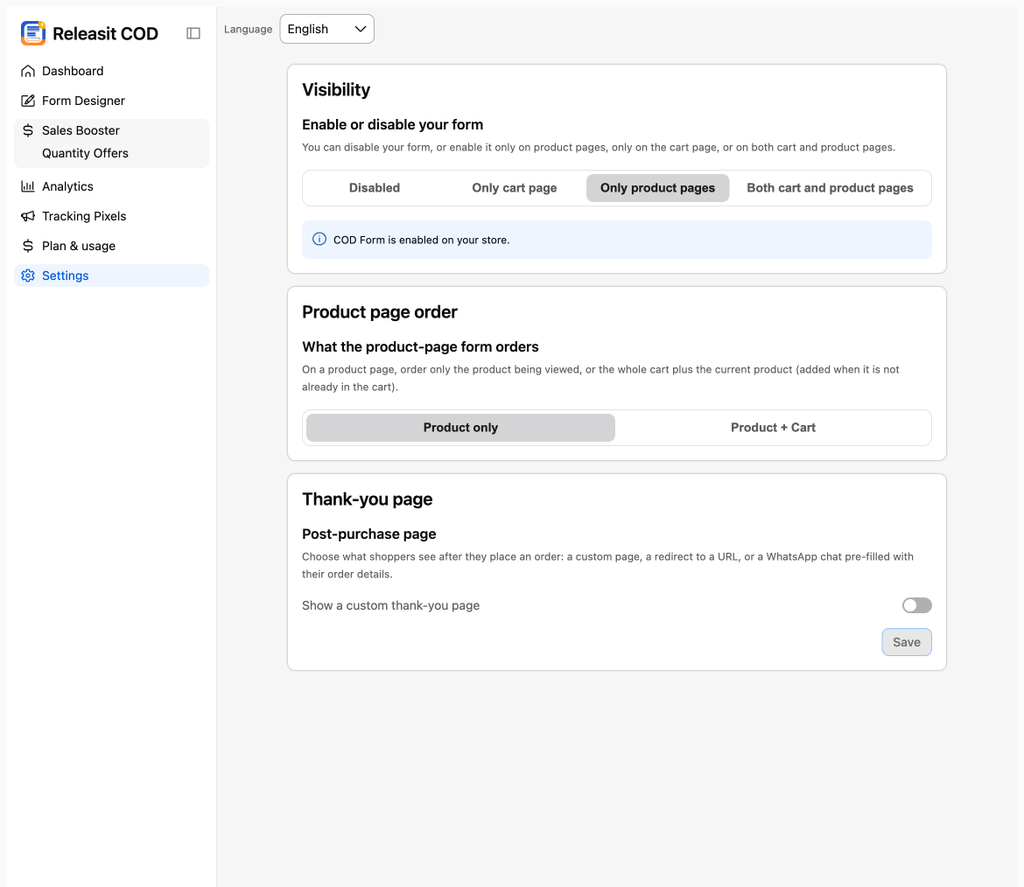
Where the button appears
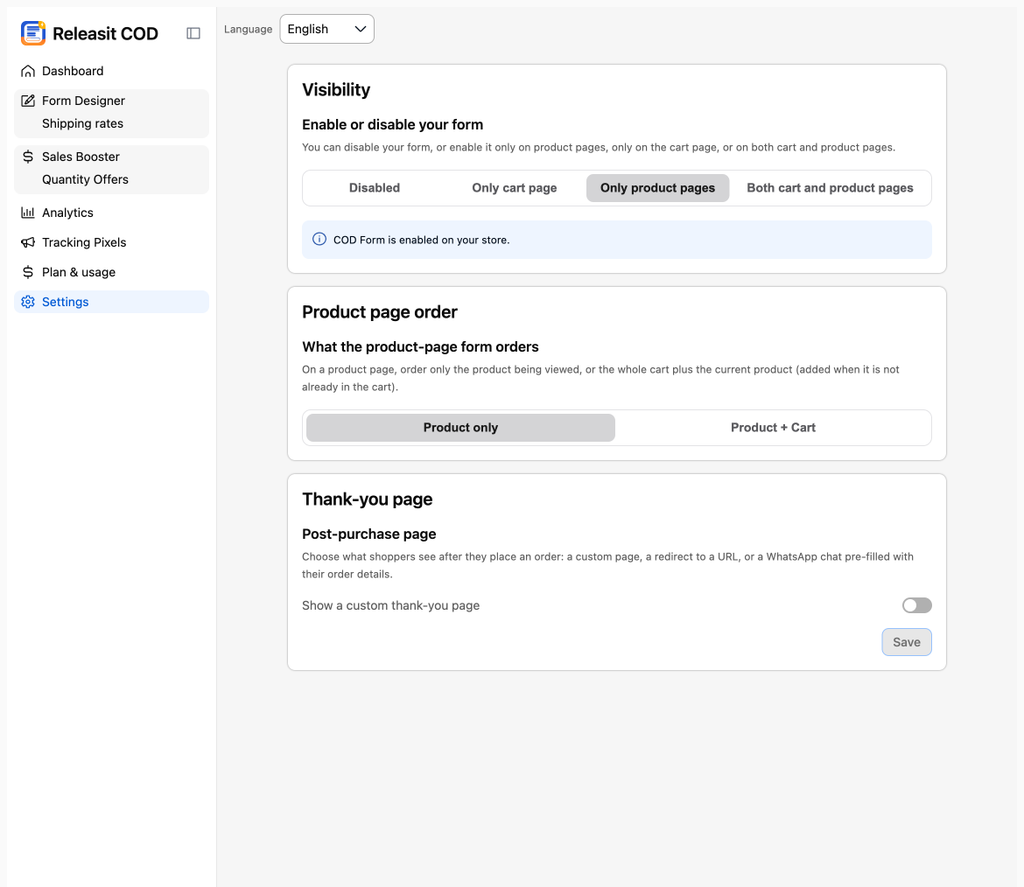
In Settings → Visibility you choose where the form shows:
- Off: the form does not appear on any page.
- Cart only
- Product pages only
- Cart and product pages
On the product page, the form has two modes, which you choose in Form Designer:
- Popup: a button appears below Add to cart. When the customer clicks it, the form opens in a window over the page.
- Embedded: the full form is shown on the product page, with no button in between.
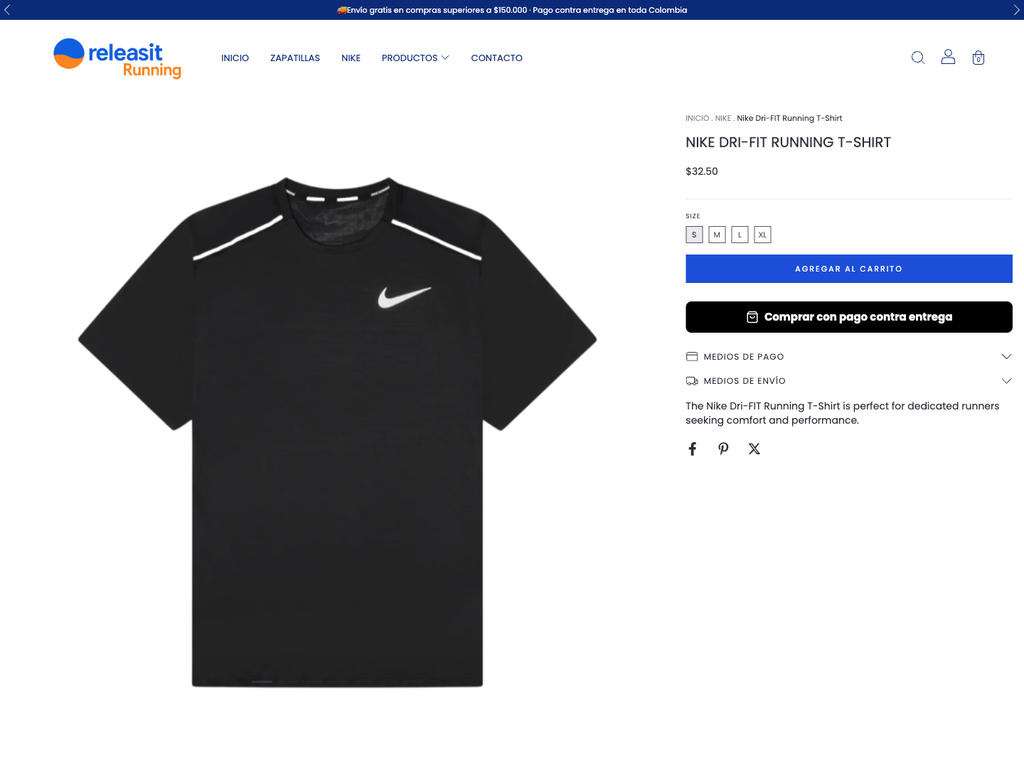
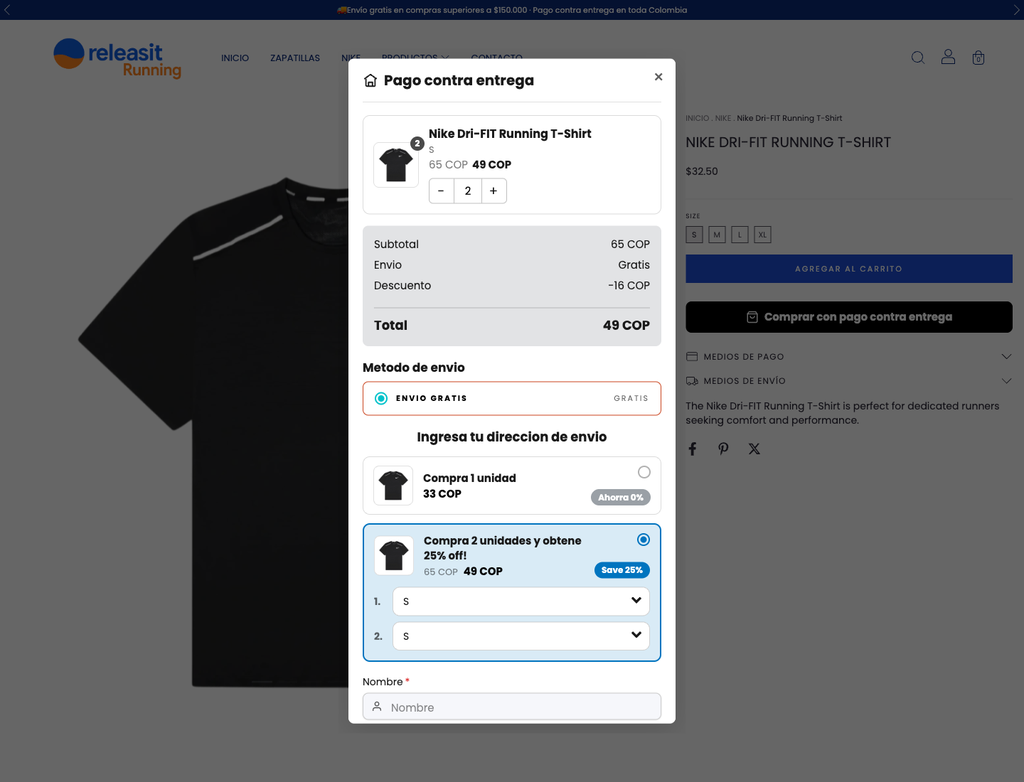
The form adapts to your theme. It uses the color and text you set in the designer, and it keeps your store's typography.
The form respects quantity and variant
If the customer selects a variant (size, color) or changes the quantity on the product page before opening the form, the form uses that variant and that quantity.
Other options in Settings
- Order on product page: choose Product only or Product + Cart, depending on whether an order from the product page includes only that product or also what the customer has in the cart.
- Thank you page: choose what the customer sees after submitting the order: Custom page, Button to a URL or Button to WhatsApp.
Every form order appears in Sales as a pending cash-on-delivery order. Read Where to find form orders in your Tiendanube admin.
Change the panel language
At the top left of the app there is a Language selector: Spanish, Portuguese or English. It changes only the language of the app panel. The texts your customers see in the form are edited in the designer.

The button does not appear
Check in this order:
- The App status switch in the Dashboard is on.
- Settings → Visibility is not set to Off.
- You are looking at a page you chose in Visibility (a product page or the cart), not the home page or a category.
- Reload the page without cache (Ctrl + Shift + R or Cmd + Shift + R).
- If the button takes a moment to appear, wait a few seconds and reload the page.
If it still does not appear, read Common problems or write to us.
Need help? Write to support+tienda@releas.it.
Updated on: 02/10/2026
Thank you!