
How to design your form: fields, colors and button
In Form Designer you define which data you ask for, how the form looks and what the button says. On the right you see a live preview. What you see in the preview is exactly what your customer sees, because both use the same code.
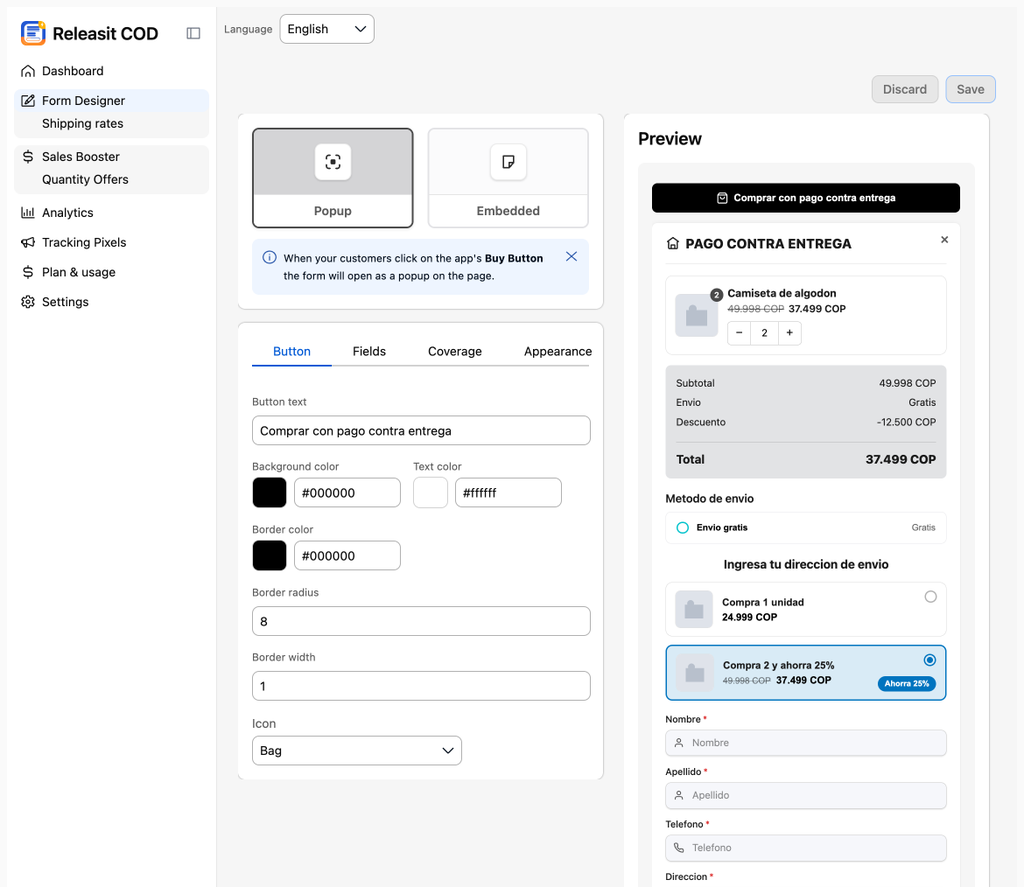
1. Choose the mode: popup or embedded
- Popup: the customer sees a button and the form opens in a window. Recommended if your product page has a lot of content.
- Embedded: the full form is shown on the page. Recommended if you want the customer to see the fields without clicking.
You can switch modes at any time without losing your configuration.
2. Customize the button
- Text: for example "Buy now, pay on delivery" or "Order cash on delivery". A text that says how the customer pays converts better than "Buy".
- Background and text color.
- Icon: optional.
3. Configure the fields
Each field has three controls:
- Show or hide.
- Required: the customer cannot submit the order without it.
- Label and helper text: the text the customer sees.
Drag the fields to change the order.
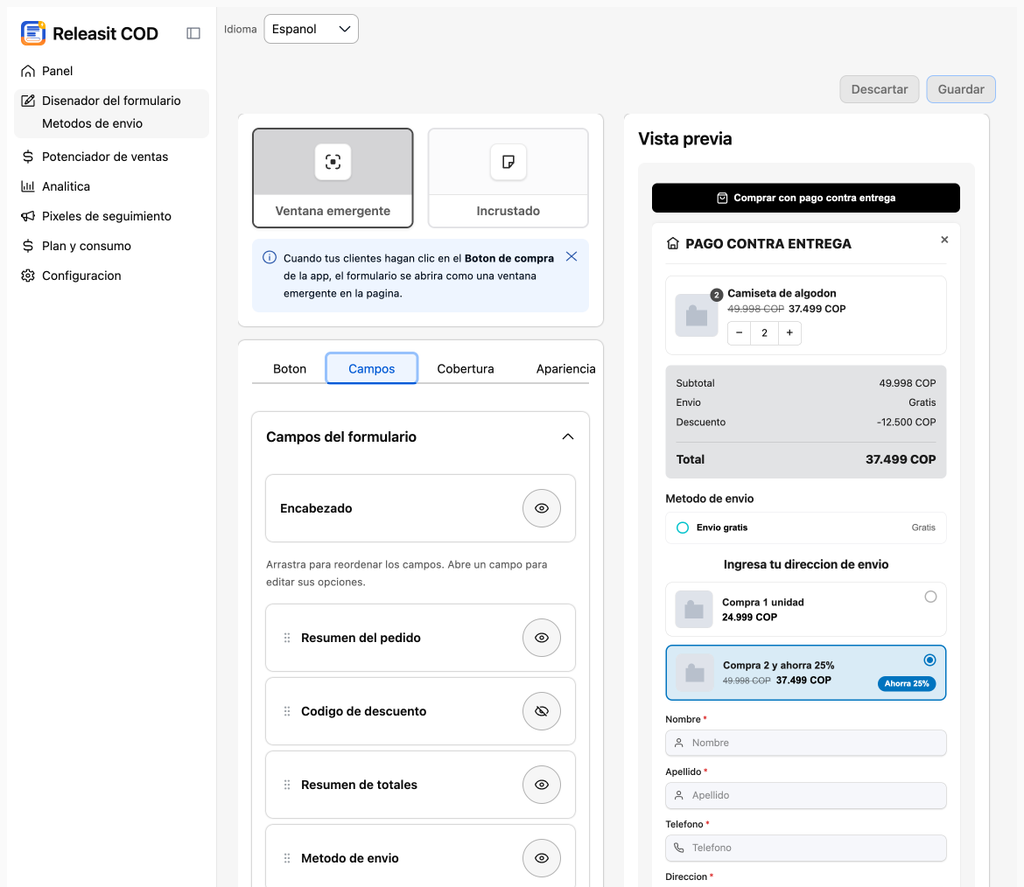
Available fields:
Field | Recommendation |
|---|---|
Full name | Required |
Phone | Required. This is the data the courier uses. |
Address | Required |
Province / Department / Region | Part of the shipping address. The format depends on your store country. |
City / Municipality / Comuna | Same as above |
Postal code | Recommended in Argentina and Mexico |
Optional. Hiding it reduces abandonment. | |
Order note | Optional. For delivery instructions. |
Newsletter checkbox | Optional. The customer agrees to receive offers. |
Terms checkbox | Recommended. The customer accepts your terms before submitting. |
Custom fields | Text, text area, dropdown or checkbox. For whatever your operation needs. |
Ask only for what you need to deliver. Every extra field lowers conversion.
4. Colors and style
- Form background, field color, text color and borders.
- Order summary: the form shows the product, quantity, subtotal, shipping and total above the fields.
Keep high contrast between text and background. Always test on a phone: most of your customers buy from their phone.
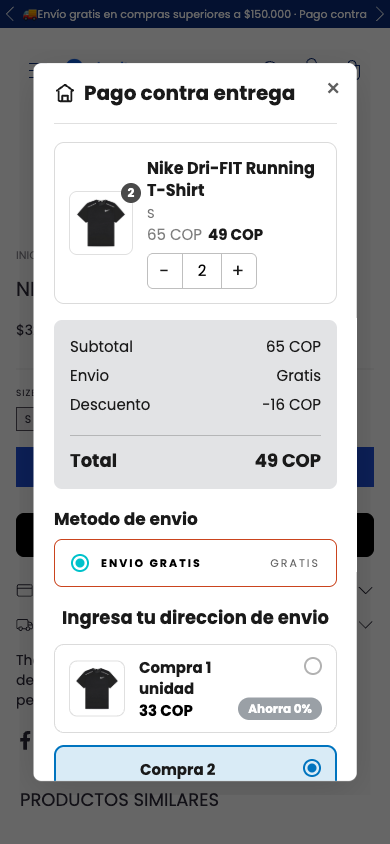
5. Save and test
- Click Save. Changes are published to your store instantly.
- Open a product in your store and complete a test order. Check that it reaches Sales with all its details, then cancel it so it does not count as a real sale.
Need help? Write to support+tienda@releas.it.
Updated on: 02/10/2026
Thank you!